
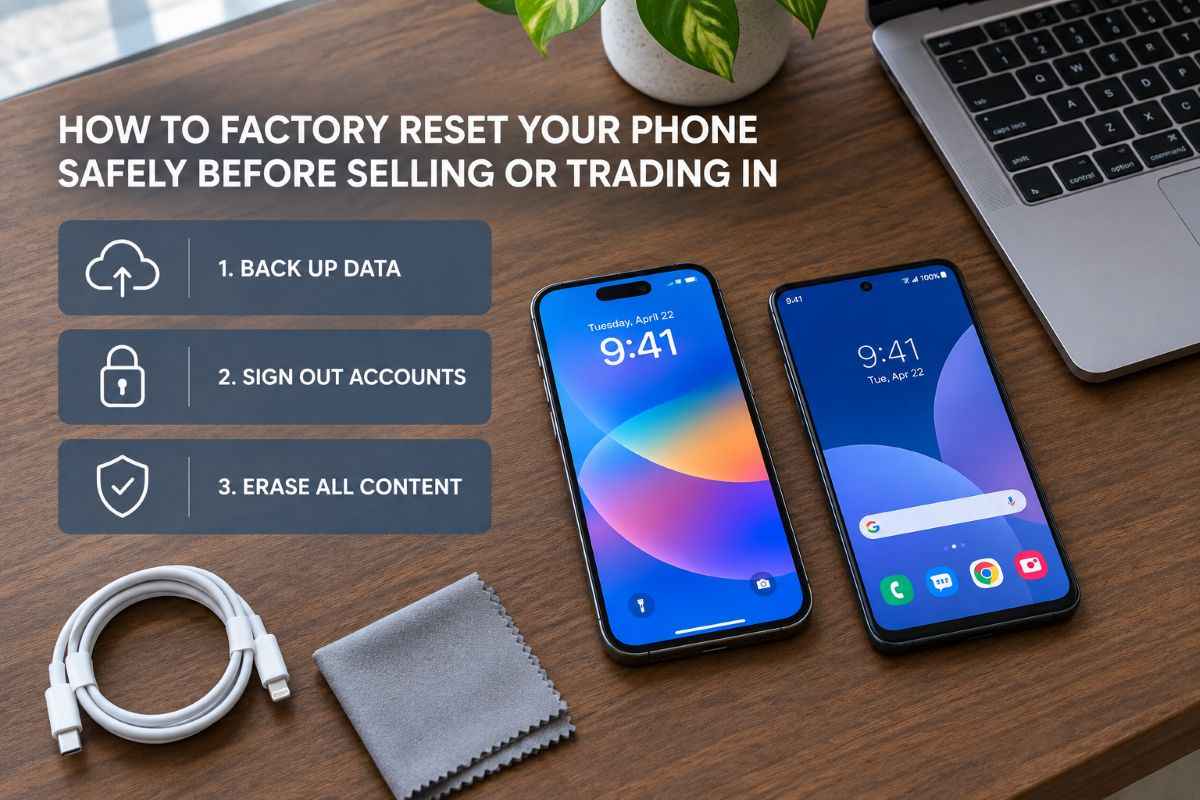
Selling, trading in or giving away your old phone involves more than deleting a few photos. Your device may contain private messages, saved passwords, payment details, personal documents and access to online accounts.
To prepare it safely, back up anything you want to keep, transfer your data to your new phone, remove account and security links as needed, and perform a factory reset. The process differs slightly between iPhones and Android phones, but the goal is the same: leave the device ready for its next owner without exposing your personal information.
This guide explains how to factory reset an iPhone or Android phone, what to check beforehand and how to avoid common mistakes.
Quick Access
Before You Factory Reset Your Phone
Do these checks before erasing anything. Once the reset is complete, recovering data that was not backed up may be difficult or impossible.
1. Back up your important data
For an iPhone, check that your latest backup is complete in iCloud or on a computer. Go to Settings → your name → iCloud to review your iCloud settings and backup options.
On Android, open Settings and look for Google → Backup. Menu names vary by manufacturer and Android version. Check that the backup has completed and that important photos, contacts and files are stored where you expect them to be.
A device backup may not include every app’s data, downloaded file or login detail. Check messaging apps, authenticator apps, banking apps and any work-related software separately.
Official instructions: Apple iPhone backup and reset guidance and Google Android factory reset guidance.
2. Transfer your data and check your new phone
If you have bought a replacement, transfer your contacts, photos, messages and other important content before wiping the old device.
Open the new phone and check that the information you need is actually there. Make sure you can access your email, password manager and authentication methods.
If you use an authenticator app for two-factor authentication, follow its transfer or recovery instructions first. Otherwise, you could lose access to accounts that depend on codes stored on the old phone.
3. Check your SIM, eSIM and memory card
Remove your physical SIM card before handing over the phone. If the device has a removable microSD card, check it for personal files and remove it unless you intend to include it.
An eSIM needs separate attention. During an iPhone erase, you may be offered the choice to keep or delete the eSIM. If you are selling the phone, you will generally want to remove your personal mobile plan from it, but make sure your service has been transferred or can be reactivated first.
Apple explains that deleting an eSIM may require contacting your network provider to reactivate the plan. Read Apple’s erase instructions.
How to Factory Reset an iPhone
Apple provides a built-in option that erases the iPhone’s content and restores it to factory settings. This is the recommended route when selling, trading in or giving away your device.
Step 1: Check your Apple Account and backup
Confirm that your photos, contacts and other important data have been backed up or transferred. Make sure you know your device passcode and Apple Account password, as you may need them to complete the process.
Step 2: Erase all content and settings
On a recent iPhone:
- Open Settings.
- Tap General.
- Select Transfer or Reset iPhone.
- Tap Erase All Content and Settings.
- Tap Continue and follow the on-screen instructions.
- Enter your passcode or Apple Account password if requested.
- Review the eSIM choice and confirm the erase.
The phone will remove personal content and settings, including locally stored photos, messages, apps and payment cards. Erasing the iPhone does not delete your content from iCloud.
Step 3: Check that Activation Lock is removed
When you erase an iPhone using the proper process, Find My and Activation Lock are turned off. This allows the next owner to set up the phone with their own Apple Account.
Wait until the iPhone displays the Hello setup screen. Do not proceed through setup using your own account if you intend to hand it over.
If you are moving from an iPhone to Android, deregister iMessage as well, following Apple’s guidance, so messages can reach your new phone correctly.
How to Factory Reset an Android Phone
Android settings differ between Google Pixel, Samsung Galaxy and other manufacturers. The general process is similar, but always check your model’s official instructions if the menu names do not match.
Step 1: Remove your accounts before selling
On many Android phones, it is sensible to remove your Google Account before resetting the device. This helps avoid Factory Reset Protection (FRP) problems for the next owner. Samsung also advises removing the Google Account before handing over a Galaxy phone.
On a Samsung Galaxy, the route is generally:
- Open Settings.
- Tap Accounts and backup.
- Select Manage accounts.
- Choose your Google Account.
- Tap Remove account and confirm.
Other Android devices may use a menu called Passwords & accounts, Users & accounts or simply Accounts. If your phone has a manufacturer account, such as a Samsung Account, follow the manufacturer’s instructions for removing it too.
Make sure you know your Google Account password before beginning. If you have recently changed it, Google advises waiting 24 hours before performing a factory reset. <Cite refs={[“turn573612search5″,”turn573612search0”]}/>
Step 2: Reset the phone through Settings
On a Samsung Galaxy, the usual route is:
- Open Settings.
- Select General management.
- Tap Reset.
- Choose Factory data reset.
- Review the information and tap Reset.
- Select Delete all and enter any requested credentials.
On other Android phones, search Settings for “factory reset” or “erase all data.” Google Pixel devices commonly place the option under System → Reset options → Erase all data (factory reset), though labels can vary by version.
Keep the phone charged and follow the on-screen prompts. When the reset finishes, the device should return to its initial setup screen. Google’s Android reset guide provides further instructions.
Step 3: Check for Factory Reset Protection
Factory Reset Protection is an Android security feature designed to stop someone from using a device reset without the owner’s permission. If the phone is reset in the wrong way, it may ask for the previously linked Google Account during setup.
Removing your account before resetting helps prevent this problem. If you have already reset the phone and it requests old account details, use the legitimate account recovery process or contact the manufacturer’s authorised support service. Do not hand over a phone that remains locked to your account.
Final Checklist Before You Sell or Trade In
Before passing the phone to someone else, confirm the following:
- Your important data has been backed up and transferred.
- You can access your accounts on your new device.
- Your physical SIM and personal memory card have been removed.
- Any eSIM or mobile plan has been handled correctly.
- Your Apple Account or Google Account is no longer linked in a way that blocks the next owner.
- The factory reset has completed.
- The phone displays its initial setup screen rather than your personal home screen.
- You have followed the retailer’s or trade-in provider’s instructions.
If you are using a trade-in service, check its requirements before sending the device. Apple, for example, instructs customers to erase their personal data and turn off Find My before handing in an eligible iPhone.
Common Mistakes to Avoid
Deleting photos manually instead of resetting: Removing individual files does not reliably remove all your personal information, accounts and settings. Use the full erase process.
Resetting before transferring authentication apps: You may lose access to accounts if you have not transferred your authenticator or saved recovery codes.
Forgetting the account password: An iPhone may require your Apple Account password during erasure, while Android account verification can affect setup after a reset.
Confusing “Reset All Settings” with erasing the phone: On iPhone, Reset All Settings changes settings but does not delete personal media or documents. Choose Erase All Content and Settings when preparing a phone for a new owner.
Leaving the device at the setup screen without checking account locks: The initial setup screen is a useful final check, but make sure the reset process completed correctly and the phone is no longer linked to your account.
Frequently Asked Questions
Does a factory reset permanently delete everything?
A factory reset removes personal data and settings stored on the phone. It does not automatically delete copies saved in cloud accounts or backups. Check your backup and cloud settings separately if you want to manage those copies.
Should I remove my SIM card before a factory reset?
You can remove a physical SIM before or after the reset, but remove it before handing the phone over. If you use an eSIM, follow your phone’s instructions and make sure your mobile service is transferred or can be reactivated.
Is factory resetting an iPhone enough before selling it?
Use Erase All Content and Settings, complete any requested account verification and check that Find My and Activation Lock have been turned off. Also remove your physical SIM and handle your eSIM appropriately.
What if I cannot unlock my phone?
Do not assume that a button-based reset will automatically make the phone ready for a new owner. Apple and Android devices have account-based security protections. Follow the manufacturer’s official recovery instructions and resolve any account lock before selling the device.
The Safest Way to Prepare Your Old Phone
The safest way to prepare a phone for sale is to back up your information, transfer important accounts and data, remove account links correctly, and use the built-in factory erase option. For iPhone users, that means Erase All Content and Settings; for Android users, it usually means Factory data reset in Settings.
Take a moment to confirm that the device has returned to its initial setup screen and no longer requires your account. That final check helps protect your privacy and makes the phone easier for its next owner to set up.