
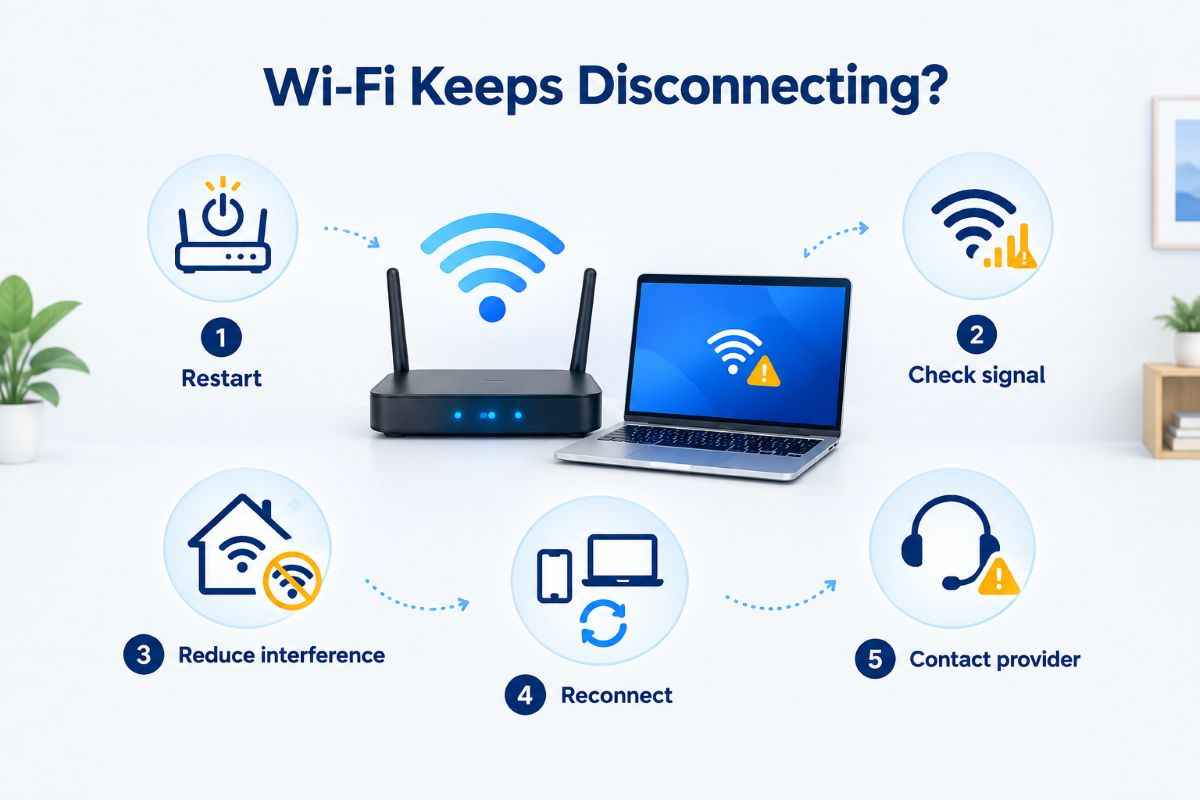
If your Wi-Fi keeps disconnecting, the cause may be your router, device, wireless signal, or internet service—not necessarily a faulty connection. The quickest way to fix it is to identify whether the problem affects one device or your entire home network, then work through the most likely causes.
This guide explains how to fix Wi-Fi that keeps disconnecting on Windows PCs, Macs, phones, smart TVs, and other connected devices in the USA. Start with the simple checks before changing advanced network settings.
Quick Access
How to Fix Wi-Fi That Keeps Disconnecting:
1. Check Whether the Problem Is Wi-Fi or Your Internet Service
First, identify what is actually disconnecting. Your device can lose its connection to the router, or it can remain connected to Wi-Fi while the router loses internet access.
Try this quick test:
- Check whether other devices in your home are also disconnecting.
- If possible, connect the affected device to a different Wi-Fi network, such as a phone hotspot.
- Notice whether the Wi-Fi symbol disappears or stays connected while websites stop loading.
| What you notice | Likely cause |
|---|---|
| Only one device disconnects | Device settings, driver, software or hardware |
| Several devices disconnect together | Router, modem, interference or ISP |
| Wi-Fi stays connected but says “No Internet” | Modem, ISP, DNS or router connection |
| Connection drops mainly in one room | Weak signal or interference |
| Connection drops after sleep or inactivity | Device power settings or adapter driver |
This simple check helps you avoid changing router settings when the issue is actually limited to one laptop or phone.
2. Restart Your Modem, Router and Device
A restart can clear temporary connection problems. It is worth trying before changing network settings.
Restart the modem and router in the right order
- Unplug the router from power.
- Unplug the modem from power. If you have a combined modem-router, unplug that single device.
- Wait at least 30 seconds.
- Plug the modem back in and wait for its connection lights to settle.
- Plug the router back in and give it a few minutes to reconnect.
- Restart the device that was disconnecting and test Wi-Fi again.
This temporarily disconnects everyone using the network. Avoid pressing the router’s Reset button: that can restore factory settings and erase your network name, password and custom configuration.
Microsoft also recommends restarting the modem and router as an early troubleshooting step for Windows Wi-Fi problems. Microsoft Support
3. Improve a Weak or Unstable Wi-Fi Signal
Wi-Fi can become unreliable when the signal has to pass through several walls, floors or large objects. Distance from the router is only one factor.
Try these changes:
- Move closer to the router and see whether the connection becomes stable.
- Place the router in a central, open location rather than inside a cabinet.
- Keep it away from thick masonry, large metal objects and enclosed spaces.
- Avoid placing it directly beside devices that may cause wireless interference.
- If your router offers both 2.4 GHz and 5 GHz, test the other band.
2.4 GHz or 5 GHz: Which should you use?
| Wi-Fi band | Often useful for |
|---|---|
| 2.4 GHz | Greater range and reaching more distant rooms |
| 5 GHz | Higher speeds at shorter distances, where the signal is strong |
If your device keeps disconnecting in a distant room, 2.4 GHz may be more stable. If you are close to the router and want better performance, test 5 GHz.
If the signal is consistently weak in part of the house, a mesh Wi-Fi system or access point may help. A range extender can also help in some layouts, but placing it where the original signal is already poor may simply extend an unreliable connection.
4. Forget the Wi-Fi Network and Reconnect
A saved Wi-Fi profile may contain outdated or incorrect connection information. Forgetting the network and reconnecting creates a fresh profile.
On Windows 11
- Open Settings.
- Select Network & internet, then Wi-Fi.
- Open Manage known networks.
- Select your network and choose Forget.
- Connect again and enter the Wi-Fi password.
On an iPhone or iPad
- Open Settings > Wi-Fi.
- Tap the information button beside your network.
- Choose Forget This Network.
- Select the network again and enter its password.
On Android
Open Settings > Network & internet or your device’s equivalent, select the saved network and choose Forget. Reconnect by entering the password.
Menu names can vary by Android manufacturer. Google recommends checking Wi-Fi settings, toggling Wi-Fi and restarting the phone when diagnosing connection issues.
5. Fix Wi-Fi Disconnecting on a Windows PC
If other devices stay connected but your Windows laptop or desktop keeps dropping Wi-Fi, focus on the PC.
Run the network troubleshooter
On Windows 11, open the Get Help app and run the Network and Internet troubleshooter. It can detect common problems and suggest repairs. Microsoft Support
Check Wi-Fi adapter power settings
Some laptops use power-saving settings that can affect wireless performance.
- Right-click Start and open Device Manager.
- Expand Network adapters.
- Right-click your Wi-Fi adapter and select Properties.
- If a Power Management tab is available, look for the option allowing the computer to turn off the device to save power.
- If appropriate, disable that option and test the connection.
The exact options depend on your adapter and Windows version.
Update or reinstall the Wi-Fi driver
If the issue started after a Windows update, the wireless driver may be involved.
- Check Windows Update for available updates.
- Visit your PC manufacturer’s support website for the correct Wi-Fi driver.
- Avoid downloading drivers from unfamiliar third-party sites.
- If you uninstall the adapter driver, make sure you have a replacement driver available first.
Microsoft lists driver checks, power settings and network reset among its troubleshooting options for recurring Wi-Fi problems.
6. Check VPNs, Security Software and Recent Changes
A VPN or third-party security tool can sometimes interfere with network connections. If Wi-Fi started disconnecting after installing or updating software, test whether that change is related.
Try temporarily disconnecting the VPN and testing Wi-Fi. If the connection becomes stable, check the VPN or security software’s support guidance before removing protection permanently.
Also consider whether the problem began after:
- A Windows, macOS, iOS or Android update
- A router firmware update
- Installing a VPN or firewall
- Changing the Wi-Fi password or security settings
- Adding a new mesh node or extender
Apple notes that VPN and third-party security software can affect network connectivity and recommends checking software updates, restarting devices and testing another network.
7. Update Your Router Firmware and Check Its Settings
If several devices disconnect, check the router rather than troubleshooting each device separately.
Sign in to the router’s management app or web interface and look for a firmware update. Use the router manufacturer’s instructions, and do not unplug the device during an update.
If the problem continues, review:
- Whether the router is overheating or placed in a poorly ventilated area
- Whether the power adapter is firmly connected
- Whether the router’s status lights change when the connection drops
- Whether the issue occurs on one Wi-Fi band or both
- Whether a recent setting change may have caused the problem
Changing wireless channels can sometimes reduce interference, but router interfaces differ. If you are unsure, record the current settings before changing anything.
8. Know When to Contact Your Internet Provider
Contact your internet service provider (ISP) if multiple devices lose internet access at the same time, especially when Wi-Fi remains connected, but the internet stops working.
Before contacting support, note:
- The approximate time and frequency of each outage
- Whether the modem’s connection lights change
- Whether wired Ethernet also loses internet access
- Whether restarting the modem temporarily restores service
- Any outage notices from your provider
If Ethernet works reliably but Wi-Fi does not, the wireless router or signal is more likely to be responsible. If both wired and wireless connections fail, the modem, service line or ISP may be involved.
Frequently Asked Questions
Why does my Wi-Fi keep disconnecting but reconnecting?
Repeated disconnects can be caused by a weak signal, wireless interference, router instability, adapter power settings or a device driver issue. Check whether other devices disconnect at the same time to narrow down the cause.
Why does Wi-Fi disconnect only on my laptop?
The laptop may have a wireless driver issue, power-saving setting, outdated network profile or VPN conflict. Restart it, forget and reconnect to the network, then check its Wi-Fi adapter settings and driver.
Should I reset my router if Wi-Fi keeps dropping?
Try restarting the router first. A factory reset should be a later step because it can erase the Wi-Fi name, password and custom settings. Check the manufacturer’s instructions and make sure you can set the network up again before resetting.
Does a Wi-Fi extender stop disconnections?
An extender may improve coverage in a weak-signal area, but it cannot fix an unstable internet connection from the modem or ISP. Place it where it still receives a reliable signal from the router.
How do I know if my ISP is causing the problem?
If several devices lose internet access together and a wired Ethernet connection also fails, the modem, service line or ISP may be responsible. Check for a service outage or contact your provider with the times and details of the interruptions.
Final Takeaway
To fix Wi-Fi that keeps disconnecting, start by checking whether the issue affects one device or the whole network. Restart the modem and router, test signal strength, reconnect to the saved network and then troubleshoot device settings or router firmware.
Change one thing at a time and test the connection after each step. That makes it easier to identify the real cause—and helps you avoid unnecessary resets or equipment purchases.